A step-by-step field guide to the Search Console error that looks like a plugin fault, is usually a routing fault, and almost always hides other problems underneath.
You open Google Search Console on an ordinary morning. Nothing was deployed. Nobody touched the server. The site loads perfectly in your browser. And the Sitemaps report says this:
Sitemap could not be read
General HTTP error
1 instance
HTTP Error: 404
Underneath it, a list of child sitemaps that Google says it did read, each carrying an error of its own. So Google is telling you it both could and could not read your sitemap.
That contradiction is the first clue, and almost everyone misreads it.
This is the sequence I follow on a WordPress site showing this error, with the traps marked and the commands included. It takes about an hour if you work in order, and considerably longer if you start by changing settings.
What the error actually means
A sitemap tells Google which URLs on your site matter. On WordPress with an SEO plugin, you do not have one sitemap — you have several, arranged in a tree:
/sitemap_index.xml ← the index; lists the others
├─ /page-sitemap.xml your pages
├─ /post-sitemap.xml your posts
├─ /category-sitemap.xml category archives
└─ /author-sitemap.xml author archives
These are virtual files. Nothing exists on disk. The plugin registers rewrite rules that map those URLs to generated XML output, and WordPress serves them on request.
Which means each one can fail independently. The index can 404 while a child serves perfectly. That is exactly what the contradictory report is describing, and it is why the first move is not to fix anything.
| Why you cannot leave this: When the index 404s, Google’s last interaction with your site’s map of itself was a failure. It does not retry aggressively — on a site without much authority, it may not retry for weeks. Meanwhile, every page you publish depends on internal links alone to be found. |
Step 1: Test every sitemap URL individually
Open each one in a private window. Not all at once, not assuming they share a fate. One at a time, and write down what each returns.
Test these
https://www.example.com/sitemap_index.xml
https://www.example.com/page-sitemap.xml
https://www.example.com/post-sitemap.xml
https://www.example.com/category-sitemap.xml
https://www.example.com/author-sitemap.xml
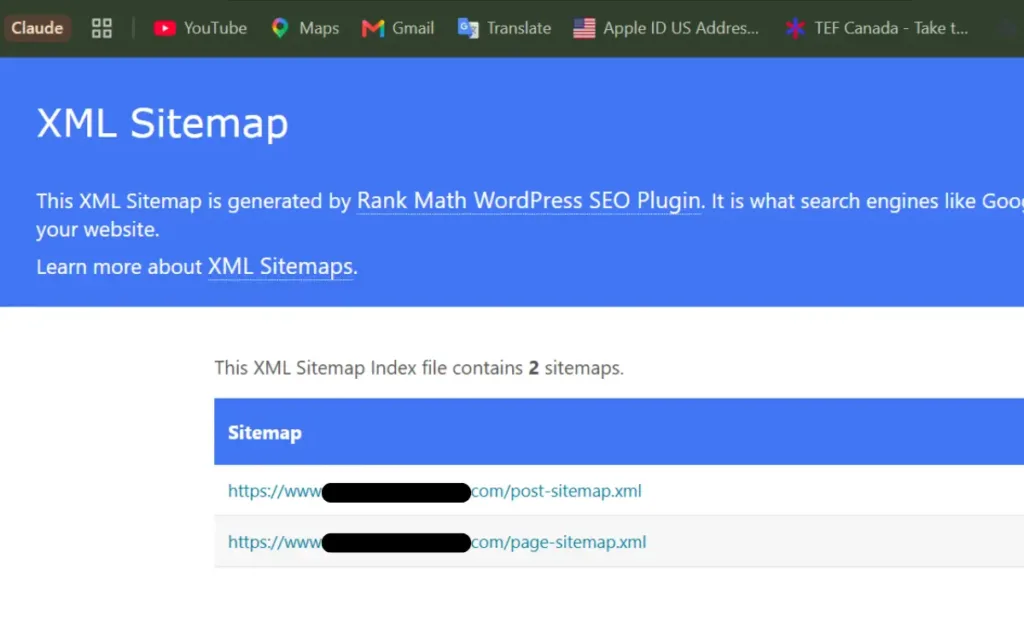
On the site I worked through, the results looked like this:
| URL | Result | Meaning |
|---|---|---|
| /sitemap_index.xml | 404 | Real fault |
| /page-sitemap.xml | 200 — 32 URLs | Healthy |
| /post-sitemap.xml | 404 | Real fault |
| /category-sitemap.xml | 404 | Expected — removed on purpose |
| /author-sitemap.xml | 404 | Expected — removed on purpose |
That table is the entire diagnosis, and it does two things at once.
One child sitemap returning 200 proves the plugin’s sitemap engine works. In a single step, that rules out a broken plugin, a robots.txt block, and a server misconfiguration, are three things people commonly spend a day on.
And two of those 404s were correct. They had been removed deliberately an hour earlier. If you treat five URLs as one unit, you cannot tell a fault from a success, and you will fix something that was never broken.
| The habit to build Never diagnose a list. Diagnose each item. This applies well beyond sitemaps. It is the difference between debugging and guessing. |
Step 2: Read the column nobody looks at
Before touching the sitemap, open Indexing → Pages and look at the pages Google is not indexing. For each URL, there is a last-crawled value, and it is the most informative field in the entire report:
Last crawled: N/A
N/A does not mean Google fetched the page and judged it thin. It means Google never went at all.
That single distinction changes what you are dealing with:
- A date, plus “Crawled — currently not indexed”: Google fetched the page and decided against indexing it. That is a content and duplication problem.
- N/A, plus “Discovered — currently not indexed”: Google knows the URL exists and has not bothered. That is a crawl-priority problem, which can be internal linking, sitemap health, and authority.
These have opposite fixes. Rewriting good pages because you read the wrong column is a common and expensive mistake.
Step 3: Tell a routing fault from a missing file
Look carefully at what the 404 actually looks like in your browser.
| What you see | What it means |
|---|---|
| Your theme’s styled 404 page | WordPress handled the request and found no matching route — a rewrite-rule fault |
| A bare server 404 (Apache/LiteSpeed default) | The request never reached WordPress — a file, server, or .htaccess issue |
| An XML parse error | The sitemap is generating but producing malformed output — usually a plugin conflict |
| A redirect to somewhere else | A redirect rule is intercepting the URL — check your redirection plugin |
If you are seeing your own 404 template, the file is not missing. The routing is. That is the common case, and the fix takes three seconds.
The fix: flush the rewrite rules
WordPress routes every request through a table of rewrite rules stored in the database. When that table is stale or partially written — after a migration, a plugin update, a permalink change, or sometimes for no visible reason — some rules resolve, and others do not.
The fix
WordPress Admin
→ Settings
→ Permalinks
→ Save Changes (change nothing — just save)
Saving that screen forces WordPress to regenerate the entire rewrite table. It changes no content and no settings. It resolves the majority of virtual-file 404s on WordPress.
The command-line equivalent
WP-CLI
wp rewrite flush –hard
# then confirm the sitemap rules are registered
wp rewrite list | grep sitemap
In PHP, if you need it programmatically
PHP
// Expensive. Never call this on every page load.
// Run it once, from WP-CLI or a one-off admin action.
flush_rewrite_rules();
Order of operations
- Flush the permalinks (Settings → Permalinks → Save Changes).
- Confirm the affected post type is still enabled in your SEO plugin’s sitemap settings — rule out an accidental change of your own.
- Purge the full page cache. On LiteSpeed: LiteSpeed Cache → Toolbox → Purge All.
- Retest every sitemap URL individually, in a private window.
- Only when all return 200, resubmit the index in Search Console.
| Cache is always the first suspect On LiteSpeed, Cloudflare, or any full-page cache, assume stale cache before assuming a code fault. “Nothing changed after I re-uploaded” is a cache statement far more often than a deployment statement. |
If it still 404s
- Check .htaccess for a leftover rewrite rule from a previous SEO plugin pointing sitemap URLs at a file that no longer exists.
- Check your redirection plugin for a rule matching .xml or sitemap.
- Deactivate other plugins one at a time — security and caching plugins are the usual culprits.
- Confirm the sitemap module itself is enabled in your SEO plugin’s dashboard.
While you are in there: four things worth checking
Chasing a sitemap fault means auditing templates, plugin settings, and the web root — places nobody looks during normal work. Four things came out of that audit, and every one was costing more than the sitemap was.
1. A fifth of the sitemap was taxonomy pages
The category sitemap held 11 URLs, and the author sitemap held 1. Twelve of 57 submitted URLs — 21% — were archive pages WordPress generates automatically.
Twelve articles spread across twelve categories means most category archives contain exactly one post and are a near-duplicate of it. An author archive on a single-author blog duplicates the blog index outright.
Google is right to refuse them. You are asking it to spend crawl budget on pages you never wanted indexed.
Rank Math
Rank Math → Titles & Meta → Categories
Category Archives Robots Meta : ON (switch off “Default” first)
☑ No Index ☐ Index ☑ Follow
Rank Math → Titles & Meta → Authors
Author Archives : OFF
Rank Math → Sitemap Settings → Taxonomies → Categories
Include in Sitemap : OFF
(check Tags is OFF too)
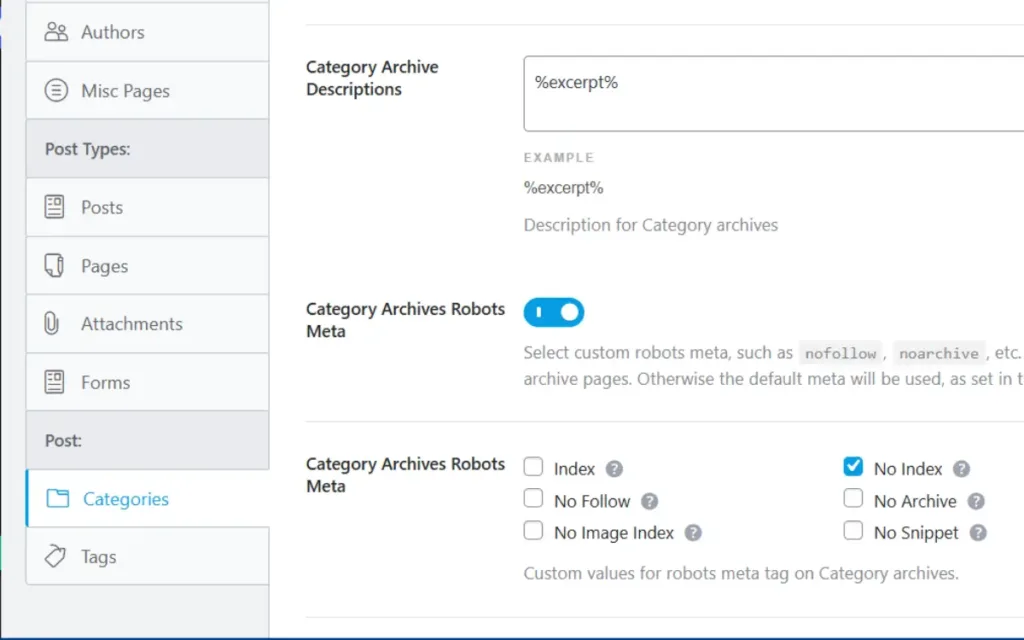
| The setting people miss Noindex and sitemap inclusion are two separate settings. A noindexed page still sitting in your sitemap is the worst combination — you are asking Google to fetch something you have told it not to index. Turn off both. |
Verify it landed. View source on any category archive and look for:
<meta name="robots" content="follow, noindex"/>Do not delete the categories
Categories stay useful for readers and for how the blog is organised. Deleting them unassigns every post. You are suppressing the archive pages they generate, not the taxonomy itself — keep the filter links on your blog index for humans.
2. The blog was structurally orphaned
This is the one that matters most, and it is invisible unless you go looking.
Plenty of modern themes draw the header and footer with JavaScript into empty mount points. The server sends this:
What the server actually sends
<div id="site-header"></div>
<div id="site-footer"></div>
Google renders JavaScript, so the visible navigation is not invisible to it. But rendering is a deferred second pass. On a site with limited crawl budget, links that only exist after render get discovered far more slowly than links in the raw HTML. Well-built themes compensate with a plain fallback copy of the navigation.
On this site, twenty-seven page templates carried that fallback. Three did not: the blog index, the single-post template, and the archive template.
| Template | Covers | Nav in HTML | Footer in HTML |
|---|---|---|---|
| page templates | 27 pages | Yes | Yes |
| home.php | Blog index | No | No |
| single.php | Every article | No | No |
| archive.php | Category archives | No | No |
The consequence: every article shipped raw HTML containing the article, a breadcrumb, and no other links at all. No navigation. No footer. No route to anywhere else on the site, and nothing to indicate the page belonged to a site.
That is precisely what “Discovered — currently not indexed” looks like from the inside.
How to check your own site in thirty seconds
- Open any blog article in a private window.
- Press Ctrl+U for view-source — the raw HTML, not the inspector, which shows the rendered DOM.
- Ctrl+F for one of your navigation labels, or for “noscript”.
- If your navigation links are not in that source, the page is relying entirely on render-time discovery.
| View-source, not Inspect The browser inspector shows the DOM after JavaScript has run, so a JS-rendered nav looks perfectly present there. View-source shows what the server actually sent. For this check, only view-source tells you the truth. |
The fix
Add the fallback once, centrally, in the functions the uncovered templates already call — not pasted into each template:
functions.php — the helper
/**
 * Crawlable primary navigation.
 *
 * The visible header is drawn by JS into #site-header, so it does not
 * appear in server-rendered HTML. This mirrors it for crawlers.
 * Links only. Never content. If a link changes in the JS header it
 * must change here too, or the two sources drift apart.
 */
function xyz_nav_fallback() {
?>
<noscript>
<nav aria-label="Primary">
<ul>
<li><a href="<?php echo esc_url( home_url( '/' ) ); ?>">Home</a></li>
<li><a href="<?php echo esc_url( home_url( '/services/' ) ); ?>">Services</a></li>
<li><a href="<?php echo esc_url( home_url( '/showcase/' ) ); ?>">Showcase</a></li>
<li><a href="<?php echo esc_url( home_url( '/blog/' ) ); ?>">Blog</a></li>
<li><a href="<?php echo esc_url( home_url( '/about/' ) ); ?>">About</a></li>
<li><a href="<?php echo esc_url( home_url( '/contact/' ) ); ?>">Contact</a></li>
</ul>
</nav>
</noscript>
<?php
}
functions.php — wired in once
function xyz_chrome_open() {
?>
<div id="site-header"></div>
<?php
xyz_nav_fallback();          // <-- added
}

function xyz_chrome_close() {
?>
<div id="site-footer"></div>
<?php
xyz_footer_fallback();       // <-- added
}| Patch centrally, not per file All three uncovered templates already called these two functions, so one edit fixed the blog index, every article, and the archives at once. If you find yourself pasting the same block into ten files, you are editing at the wrong level. |
Verify by uploading, purging the cache, then view-source on any article and searching for “noscript”. You want the nav list near the top and the footer block near the bottom.
3. A page serving no meta description
The blog index was serving this:
<title>Blog - Example Site</title>
<meta name="description" content="Blog -"/>
<meta property="og:description" content="Blog -"/>
Six characters and a trailing hyphen, and a 27-character title using none of its 60-character budget on anything a person would actually search for.
Worth checking on bilingual sites in particular: the French version of the same page had a properly written 140-character description. The translation had been done carefully, and the English left on autopilot. That asymmetry is common.
| The WordPress trap that costs hours When a page is assigned as your Posts page under Settings → Reading, WordPress stops treating it as a normal page. Your SEO plugin’s snippet editor on that page has no effect — you can type into it, save, watch it store your text, and the front end never changes. The setting lives on a different screen entirely. If an edit refuses to take, check whether the page has a special role assigned in Reading Settings. |
4. Publicly readable source code
Three files were sitting in the theme directory:
functions.php bak
inc-subscribe.php bak
templates/booking.php bak
A file ending in “.php bak” is not executed by PHP. The server treats it as plain text and serves it. Anyone requesting that URL receives the complete source of your functions file.
How it is retrieved
https://example.com/wp-content/themes/child/functions.php%20bak
| Two rules worth adopting Backups never live in the web root — download them, or store them above public_html. And note that extracting a zip over an existing folder overwrites and adds files but never deletes: stale files survive deployment, so clean them by hand. |
Search your theme and plugin directories for files ending in .bak, .old, .save, .orig, .txt, and “ bak”. Delete them from the server.
The last check, and the one most audits skip
With the sitemap serving, the taxonomy suppressed, the blog reconnected, and the metadata corrected, run a live crawlability test:
Search Console → URL Inspection
→ paste the URL
→ TEST LIVE URL (not “View crawled page”)
This fetches your server right now, as Googlebot, rather than showing you a cached result. It answers a question nothing else does:
- Fails or times out → server-side. Googlebot is being blocked or throttled by a firewall, security plugin or cache layer. Fixable, and worth fixing immediately.
- Returns “URL is available to Google” → your server and markup are fine. Google is choosing not to spend crawl budget on you.
If it is the second, there is one more report to open, and it is the one that actually predicts whether any of this work will show up in rankings:
Search Console → Links → Top linking sites
Your referring domains. How many other websites point at yours, and who they are.
| The honest conclusion Technical SEO removes obstacles. It does not create authority. Those are two different jobs, and only one of them can be finished in an afternoon. A site can be technically flawless and still go nowhere, and the reason is almost always sitting in that report. |
There is a second thing worth reading in it. The Links report also shows which of your pages Google considers most internally linked. If those are URLs from a previous version of your site — pages that no longer exist in that form — Google’s map of your site is out of date, and no amount of new content will rank until it recrawls.
That gives you a progress signal that moves well before traffic does. When the internal-links report starts naming your current URLs, the recrawl has genuinely landed.
The full checklist
| # | Action | Where |
|---|---|---|
| 1 | Test every sitemap URL individually in a private window | Browser |
| 2 | Check “Last crawled” on unindexed URLs — N/A means never fetched | Search Console |
| 3 | Identify whether the 404 is styled or bare | Browser |
| 4 | Flush rewrite rules | Settings → Permalinks → Save |
| 5 | Purge the full page cache | Cache plugin → Purge All |
| 6 | Retest every sitemap URL | Browser |
| 7 | Noindex category and author archives | SEO plugin → Titles & Meta |
| 8 | Remove those archives from the sitemap | SEO plugin → Sitemap Settings |
| 9 | View-source a blog article and search for your nav links | Browser |
| 10 | Check every template has a real meta description | Browser |
| 11 | Delete backup files from the web root | File Manager |
| 12 | Run the live URL inspection test | Search Console |
| 13 | Resubmit the sitemap index | Search Console |
| 14 | Read the Links report and count your referring domains | Search Console |
| Do not click “Validate Fix” yet. Validating before your changes are live and crawled puts the report into a failed state and Google becomes slower to re-check. Wait until pages start moving on their own. |
Quick reference
Reading a sitemap 404
| Observation | Most likely cause | First action |
|---|---|---|
| All sitemap URLs 404 | Rewrite rules stale, or module disabled | Flush permalinks |
| Some 200, some 404 | Partially stale rewrite rules | Flush permalinks |
| Loads for you, 404 for Google | Cache or bot-blocking | Purge cache; live URL test |
| Styled 404 page returned | Routing fault, not a missing file | Flush permalinks |
| Bare server 404 | File or rule genuinely absent | Check plugin and .htaccess |
| Cross-host URLs inside the sitemap | www / non-www mismatch | Normalise to the canonical host |
Reading an indexing report
| Status | Meaning | Response |
|---|---|---|
| Discovered — not indexed | Known, never crawled | Internal links, sitemap, authority |
| Crawled — not indexed | Fetched, judged not worth indexing | Content quality, duplication |
| Blocked by robots.txt | Explicitly disallowed | Edit robots.txt |
| Page with redirect | Redirecting elsewhere | Usually correct — leave alone |
| Duplicate, different canonical | Google picked another URL | Check canonical tags |
| Last crawled: N/A | Never fetched at all | Crawl priority, not content quality |
Commands and paths
# Flush WordPress rewrite rules
Settings → Permalinks → Save Changes
wp rewrite flush –hard
wp rewrite list | grep sitemap
# Purge LiteSpeed
LiteSpeed Cache → Toolbox → Purge All
# Inspect what the server actually sent
Ctrl+U view source (not Inspect)
Ctrl+F noscript confirm crawlable fallback links
Ctrl+F noindex confirm robots meta
# Live crawlability test
Search Console → URL Inspection → TEST LIVE URL
# Count referring domains
Search Console → Links → Top linking sites
Frequently asked
-
Does a sitemap error stop my site from ranking?
Not directly. Pages already indexed keep ranking. What it stops is efficient discovery of new and updated pages, and on a site without much authority, that is a real cost. New content can sit undiscovered for weeks.
-
How long until Google re-reads my sitemap after I fix it?
Resubmitting in Search Console usually prompts a read within a few days. If the previous read failed, resubmit rather than waiting. Google backs off after a failure and will not necessarily retry soon on its own.
-
Should I noindex category archives on every site?
No. If a category holds a genuine body of posts and reads as a useful hub, index it. The test is whether the archive offers something the individual posts do not. One post per category fails that test; twenty posts with a written introduction passes it.
-
Is a noscript navigation fallback still necessary if Google renders JavaScript?
Google does render JavaScript, so a JS-rendered nav is not invisible. But rendering happens on a deferred second pass, and links present in the raw HTML are discovered sooner and more reliably. On a site with limited crawl budget, the difference is material, and a page with no links at all in its server HTML has nothing for the first pass to follow.
-
How many referring domains do I need?
There is no fixed number, and anyone quoting one is guessing. What matters is relative: look at who currently ranks for your target term and compare. For a competitive local commercial keyword, a handful of referring domains is rarely enough, however clean the markup.
I run Lami Godlove Digital, a digital marketing agency in Limbe, Cameroon. We build websites, rank them on Google, and write the copy that sells as one system rather than three separate suppliers. If your site is technically clean and still going nowhere, that is usually a diagnosable problem, and we are happy to tell you plainly where it is leaking.
